.png)


.jpeg)
Connected App security is important, and we’ve talked about the potential for massive data breaches if these apps aren’t properly audited and secured. There are generally recommended approaches to doing an audit and cleanup, to let’s break it down.
If you’ve not looked at your list of connected apps lately, it may surprise you! You can look at the list in two ways. First, in setup there’s two pages under Setup > Apps > Connected Apps that give you information about connected apps that have been authorized to access your org. Second, you can run the following query in Developer Console:
➯SELECT Id, AppName, UserId, CreatedDate, LastUsedDate, UseCount,
AppMenuItemId FROM OAuthToken
Once you have your list, there are a series of checks you can do to ensure only warranted apps are connected and have the correct security settings configured. Let’s go through these steps in order.
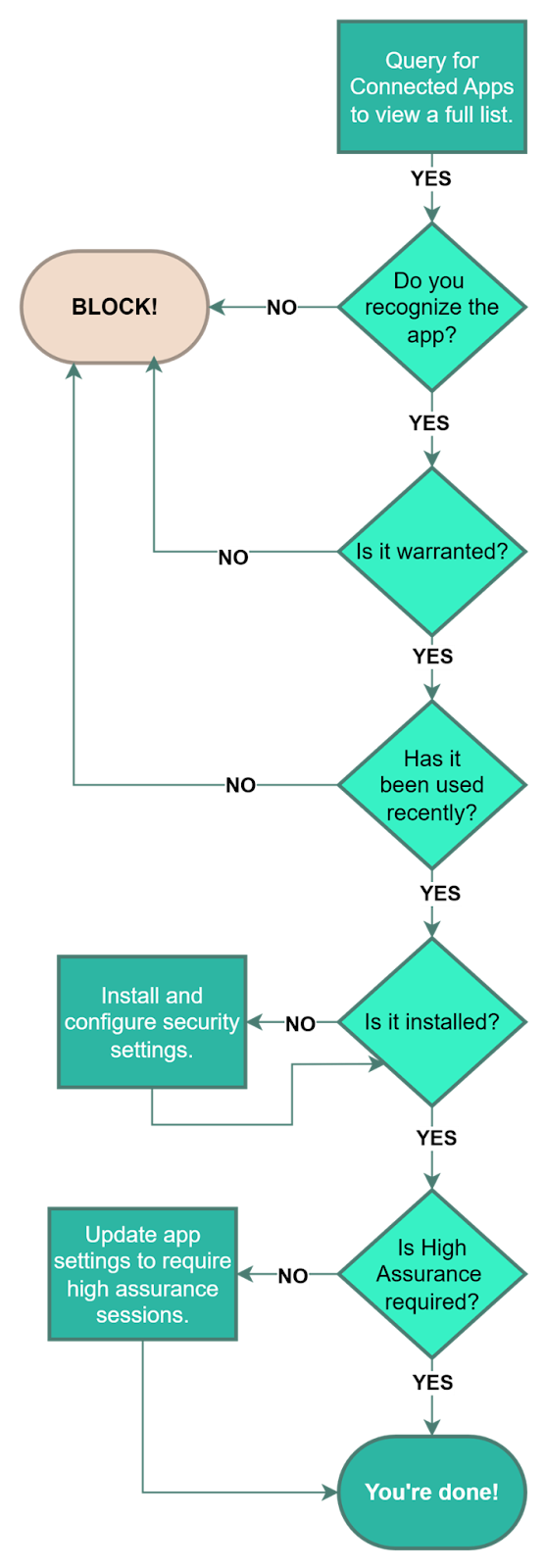
- Check for Unrecognized Apps: The first thing you want to look at is to check for any connected apps you don’t recognize. If users are authorizing random connected apps, you should block them! You don’t want unfamiliar third parties getting access to your org. If a user wants to connect an app, they should go through proper channels to request it so that IT can be aware and approve the app.
- Review Any Unwarranted Apps: After reviewing for unfamiliar apps, check for any connected apps that aren’t really warranted. Some connected apps may be from old processes and no longer relevant or superfluous and not truly needed. These apps should also be blocked to reduce the number of unnecessary connections to Salesforce.
- Check App Usage: The next step is to check the last time the connected app was used. Even if it’s a familiar and potentially useful app, if not one has used it for several months then it’s probably not worth keeping connected. Block stale and unused apps. You can always unblock them if their need comes up again!
After this review of what apps should and shouldn't be connected, it’s time to check that approved apps have the right security settings configured.
- Check for Uninstalled Apps: When looking at the list, in Setup, if the connected app has the option to “Install”, that means that at least one user has authorized the app but it isn’t officially installed in the org. In the query results, if the app is missing an AppMenuItemId then that also means it is not installed. Like we discussed earlier, installing a connected app will allow you to have more control over security options.
- Configure Security Settings: Finally, as detailed above, you can force multi-factor authentication to use a connected app by enabling the high assurance session required setting on the app. This is generally a best practice and adds another layer of protection.
After you’ve finished all of these steps, you’re finished and your org is safer for it! Here’s a handy flow-chart to help you with the steps:
Want help with your audit?
Auditing all of your connected apps and reviewing all of the possible security settings can be overwhelming, but you don’t have to do it alone! We offer Free 24-hour Salesforce Health Checks, which include a review of potential security risks like connected apps and more! In our Health Checks, we can provide you with intelligent connected app insights, including:
- A comprehensive overview of what apps are connected to your Salesforce
- A detailed security audit of any dangerous security gaps in these connected apps settings
- Detailed usage patterns of all connected apps to help identify which of them are active and in use and which can be considered for uninstallation
In addition to these invaluable insights, we offer advice on how to proceed with cleanup and adjustments to ensure your connected apps are air tight! Schedule a health check to keep your org safe today! →
